Loading…
How to Set Up Your Gate API
Zyphex needs a Gate API key and secret to sign your trades. Setup takes about 5 minutes.
Enable only Cross-Exchange → Read And Write. Leave Spot Trading, Perpetual Futures, and Withdraw off. Zyphex trades through Gate's CrossEx, so that is all it needs, and fewer permissions mean less risk if the key ever leaks.
- Log in at gate.com and make sure your account is verified. No account yet? Sign up here.
- Open "API Management". Click your profile icon (top right) and choose it. On some layouts it sits under "Sub-accounts and APIs" on your Profile page.
- Click "Create API Key" (sometimes "Create New Key"), name it (for example "Zyphex") and choose the type "API v4 Key". Older key types do not work.
- Set the permissions. Turn on Cross-Exchange with Read And Write and nothing else. Without it, the key fails validation (Gate returns a 403).
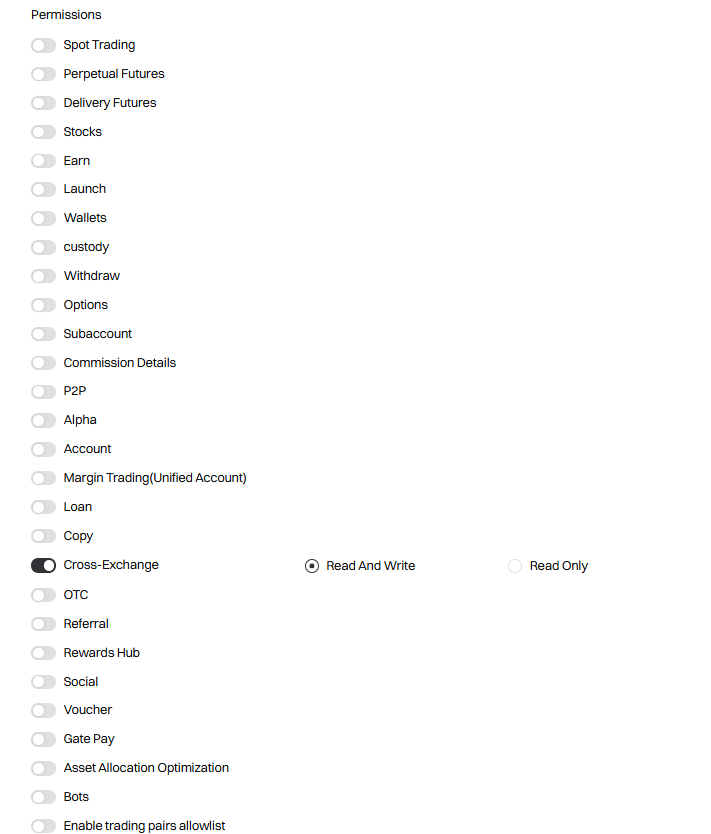
Only Cross-Exchange is on (Read And Write). - Bind the key to an IP (optional, but the best safety step). Zyphex sends your orders from its own server, so Gate only ever sees this address:
loading…Do not enter your own IP address. Your computer never talks to Gate directly, so the key would stop working.
Why bother: if your secret leaks, a bound key is useless from any other address. It cannot help if the Zyphex server itself is breached. If Zyphex ever moves servers, update this field when the key stops working.
- Confirm. Click Create or Submit, then verify with 2FA (and your Fund Password, if Gate asks).
- Copy both values now. Gate shows the API Key and Secret Key only once. If you leave without copying the secret, delete the key and create a new one.
- Paste them into Zyphex. On the Account page, enter both under "Gate API" and click "Validate and Save". Zyphex checks the key before saving, and your secret is never stored as readable text.
Never share your Secret Key: not in a support ticket, not in a screenshot, not with anyone claiming to be from Gate or Zyphex. You only ever paste it on your Account page.
Gate's interface changes now and then. If a step looks different, see Gate's own guide: gate.com/help.